-
.thumb.jpg.a9542b79068374c5bd0347f542b6dada.jpg) Quick AccessGive your IPS community a faster and more organized way to access important pages, resources, and tools. Help members find what they need faster with personal shortcuts, pinned links, and customizable quick access menus. With flexible permissions and multiple display options, Quick Access improves navigation for both your team and your community members. Why Quick Access?Large communities usually have many important pages: rules, support sections, dashboards, resources, external tools, and frequently used areas. But over time, members often struggle to find these pages quickly. Quick Access solves this by providing a centralized and customizable access point where users can keep their most important links available anytime. Key Features🚀 Personal Quick Links for MembersAllow users to create their own shortcuts to frequently visited pages. Perfect for: Favorite topics Important forums External resources Frequently used tools ⭐ Pin Important LinksMembers can pin their most useful links and access them faster without searching again. 🔐 Advanced Permission ControlControl exactly who can use each feature. Manage permissions for: Using Quick Access Creating personal links Using keyboard shortcuts Viewing general links Based on member groups. ⌨️ Keyboard ShortcutsGive power users a faster way to open Quick Access with customizable shortcuts. Shortcut access can be controlled by permissions. 📌 General Links ManagementCreate shared links for your entire community. Useful for: Rules & guidelines Support pages Important announcements External services Community resources 🔗 Quick Links IntegrationQuick Links works together with Quick Access but can also be used as a standalone free feature. Create a simple navigation area for common links without requiring the full Quick Access experience. 🖥 Flexible Display OptionsChoose how Quick Access appears on your website: User bar integration Floating button Responsive mobile experience 🛠 Admin Link ManagementAdministrators can easily create, edit, organize, and sort community links from the AdminCP. ↕️ Drag & Drop SortingQuickly organize links and control their display order with simple sorting. Perfect ForCommunity OwnersImprove navigation and make important resources easier to discover. Moderators & Staff TeamsKeep frequently used management tools and internal resources accessible. MembersCreate a personalized shortcut area for their own favorite pages. Built For Modern CommunitiesQuick Access helps transform scattered links and frequently used pages into a clean, organized, and personalized experience.50.00 USD
Quick AccessGive your IPS community a faster and more organized way to access important pages, resources, and tools. Help members find what they need faster with personal shortcuts, pinned links, and customizable quick access menus. With flexible permissions and multiple display options, Quick Access improves navigation for both your team and your community members. Why Quick Access?Large communities usually have many important pages: rules, support sections, dashboards, resources, external tools, and frequently used areas. But over time, members often struggle to find these pages quickly. Quick Access solves this by providing a centralized and customizable access point where users can keep their most important links available anytime. Key Features🚀 Personal Quick Links for MembersAllow users to create their own shortcuts to frequently visited pages. Perfect for: Favorite topics Important forums External resources Frequently used tools ⭐ Pin Important LinksMembers can pin their most useful links and access them faster without searching again. 🔐 Advanced Permission ControlControl exactly who can use each feature. Manage permissions for: Using Quick Access Creating personal links Using keyboard shortcuts Viewing general links Based on member groups. ⌨️ Keyboard ShortcutsGive power users a faster way to open Quick Access with customizable shortcuts. Shortcut access can be controlled by permissions. 📌 General Links ManagementCreate shared links for your entire community. Useful for: Rules & guidelines Support pages Important announcements External services Community resources 🔗 Quick Links IntegrationQuick Links works together with Quick Access but can also be used as a standalone free feature. Create a simple navigation area for common links without requiring the full Quick Access experience. 🖥 Flexible Display OptionsChoose how Quick Access appears on your website: User bar integration Floating button Responsive mobile experience 🛠 Admin Link ManagementAdministrators can easily create, edit, organize, and sort community links from the AdminCP. ↕️ Drag & Drop SortingQuickly organize links and control their display order with simple sorting. Perfect ForCommunity OwnersImprove navigation and make important resources easier to discover. Moderators & Staff TeamsKeep frequently used management tools and internal resources accessible. MembersCreate a personalized shortcut area for their own favorite pages. Built For Modern CommunitiesQuick Access helps transform scattered links and frequently used pages into a clean, organized, and personalized experience.50.00 USD -
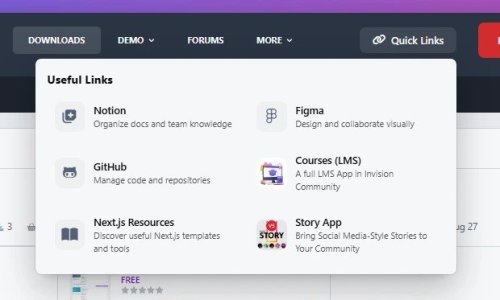 Quick LinksKeep important website resources, tools, and external pages easy to find. Quick Links allows administrators to create and manage a simple collection of useful links and display them in a clean, accessible way for members. Whether you want to highlight community resources, helpful pages, documentation, social links, or external tools, Quick Links gives your users a better navigation experience. Key FeaturesEasy Link Management Create, edit, enable or disable links from the admin panel. Custom Icons Add icons to make links easier to recognize and improve visual navigation. Link Images Use images for links to create more engaging and visual shortcuts. Group Visibility Control Choose which member groups can see specific links. Drag & Drop Ordering Control the order of links and highlight the most important resources. Responsive Design Works smoothly across desktop and mobile devices. Perfect forCommunity resources Documentation pages Social media links Partner websites Useful tools Important internal pagesFree
- 1 review
-
-

- 1
-
-
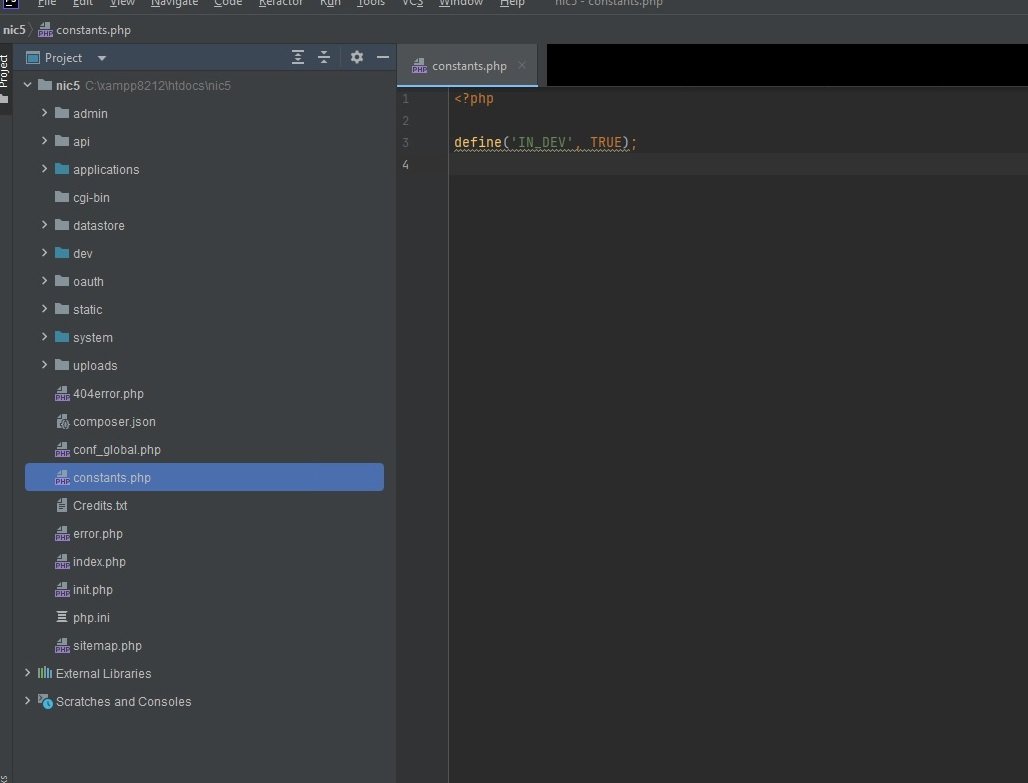
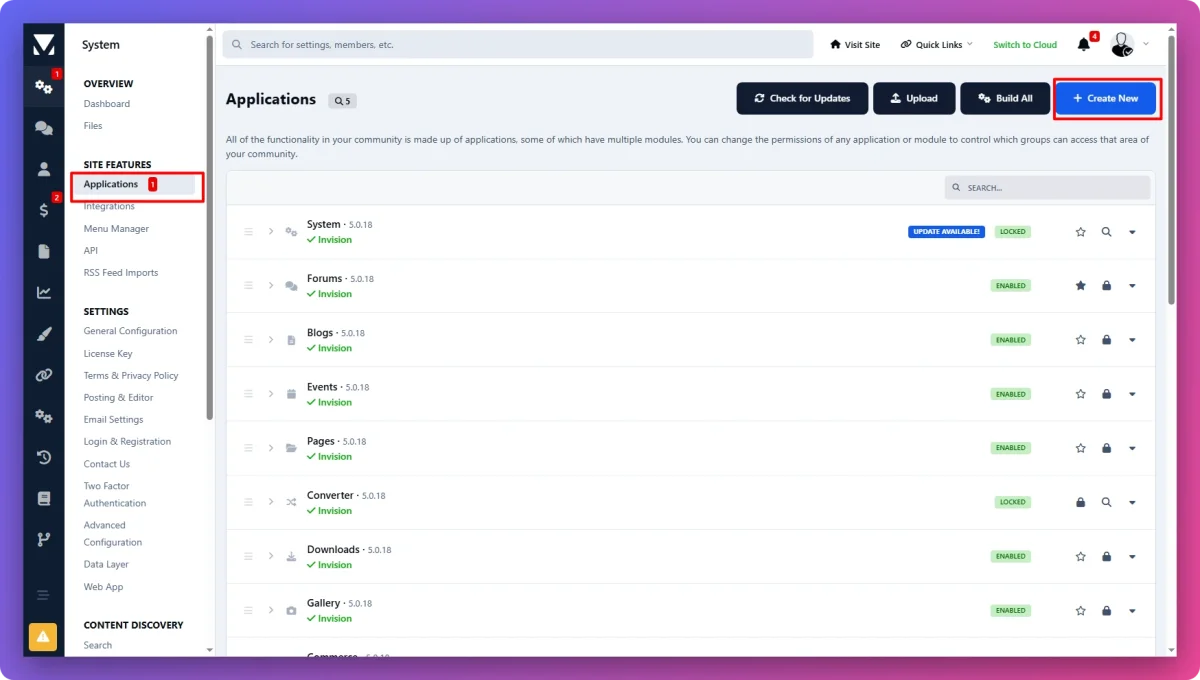
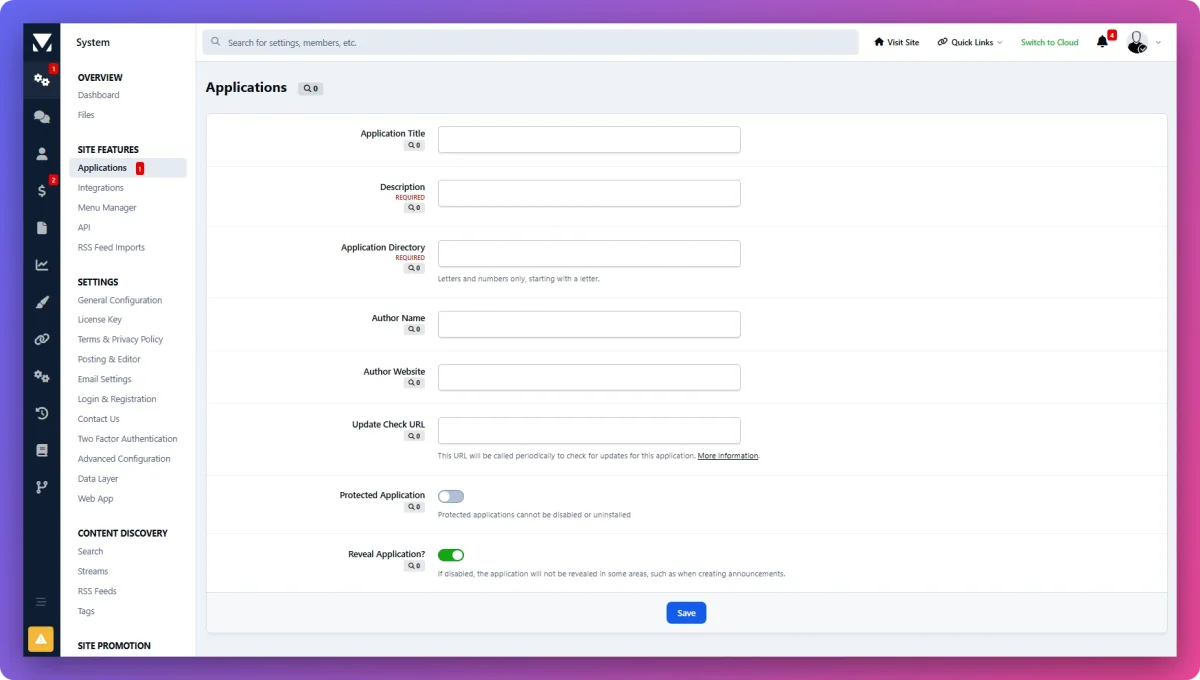
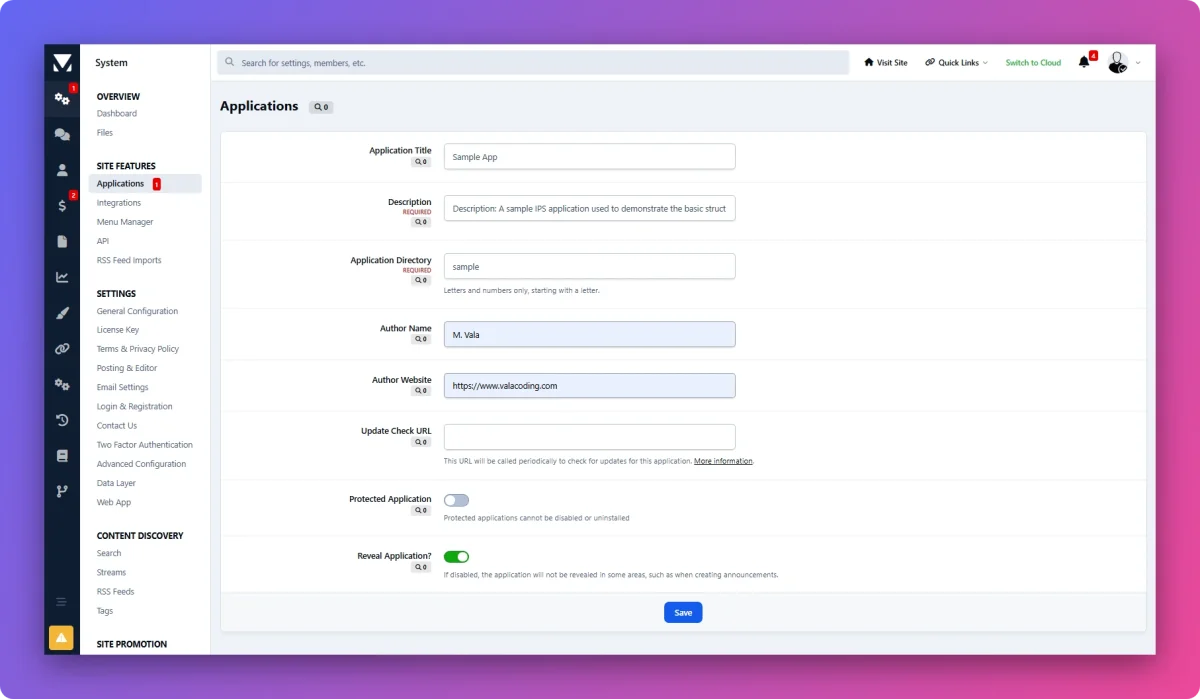
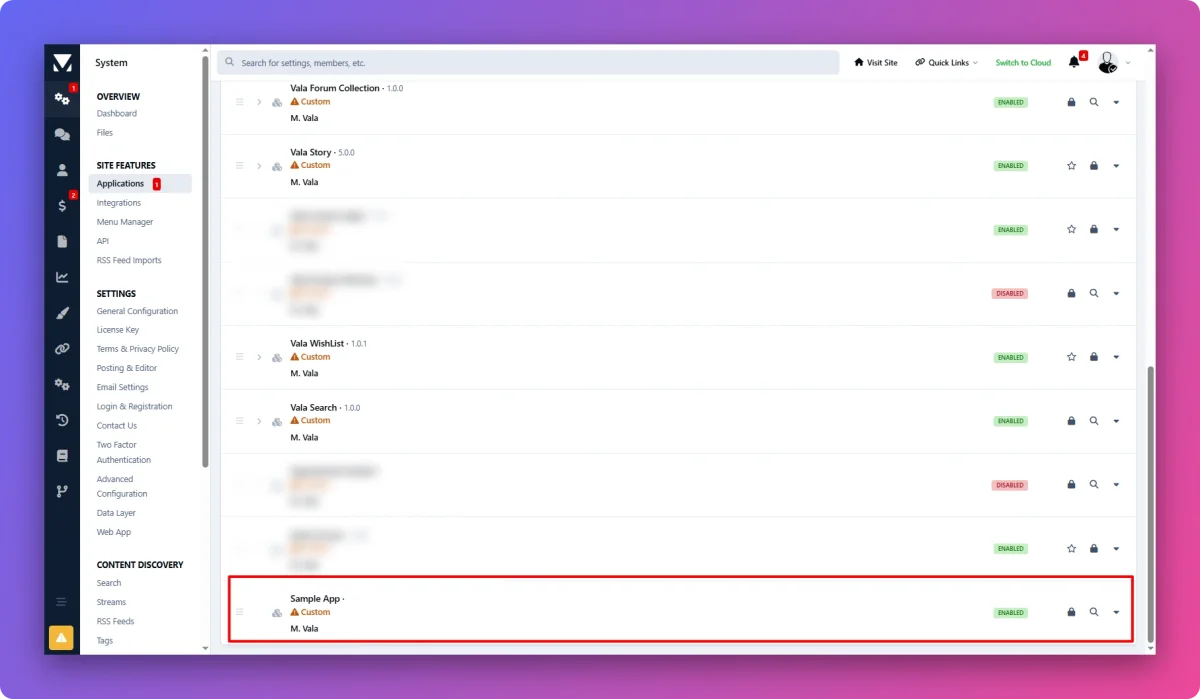
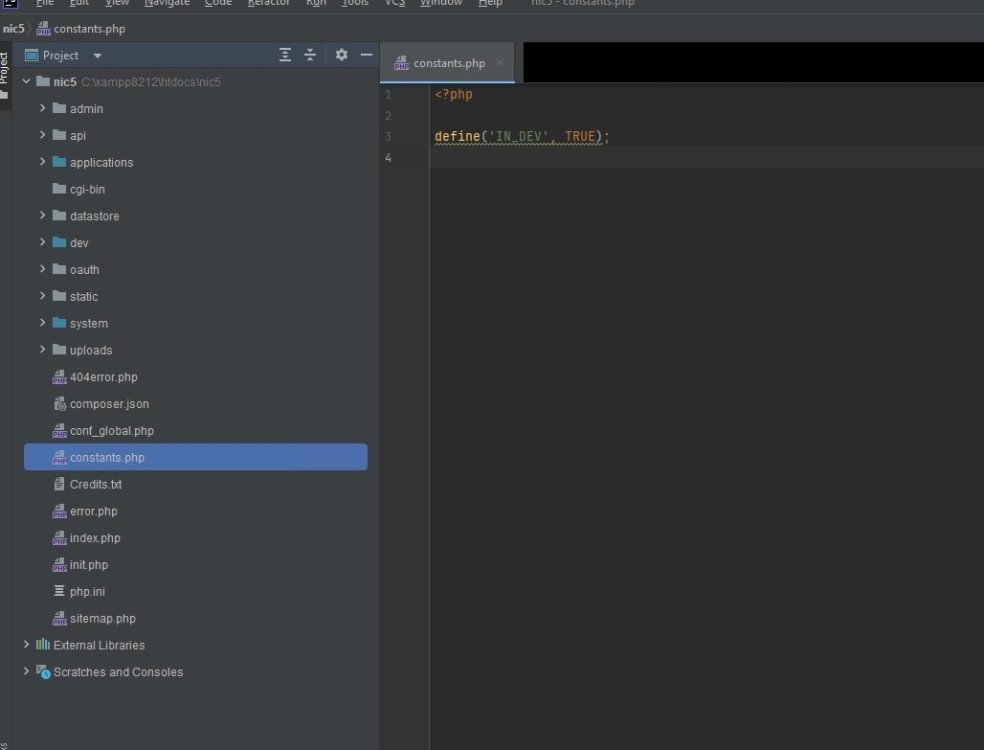
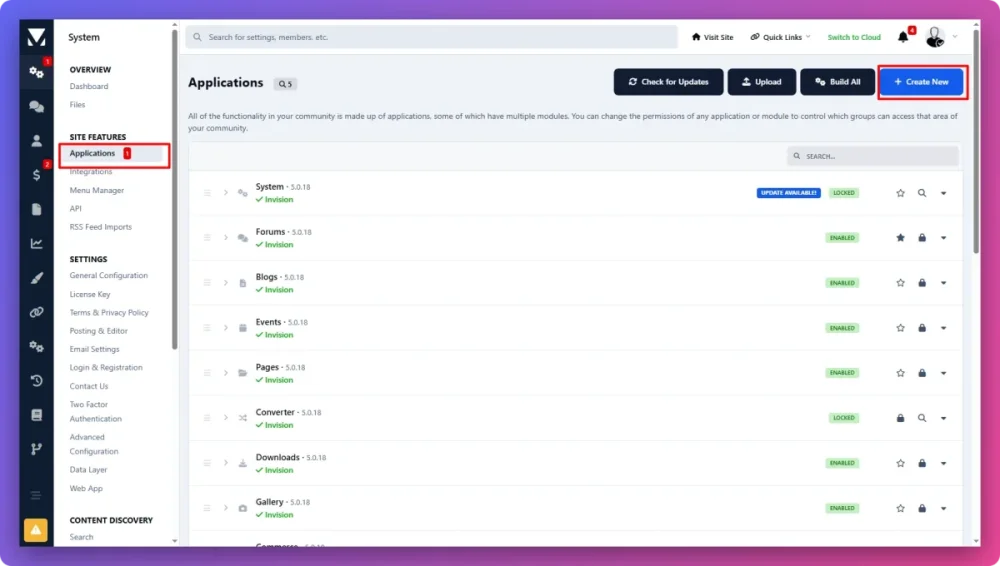
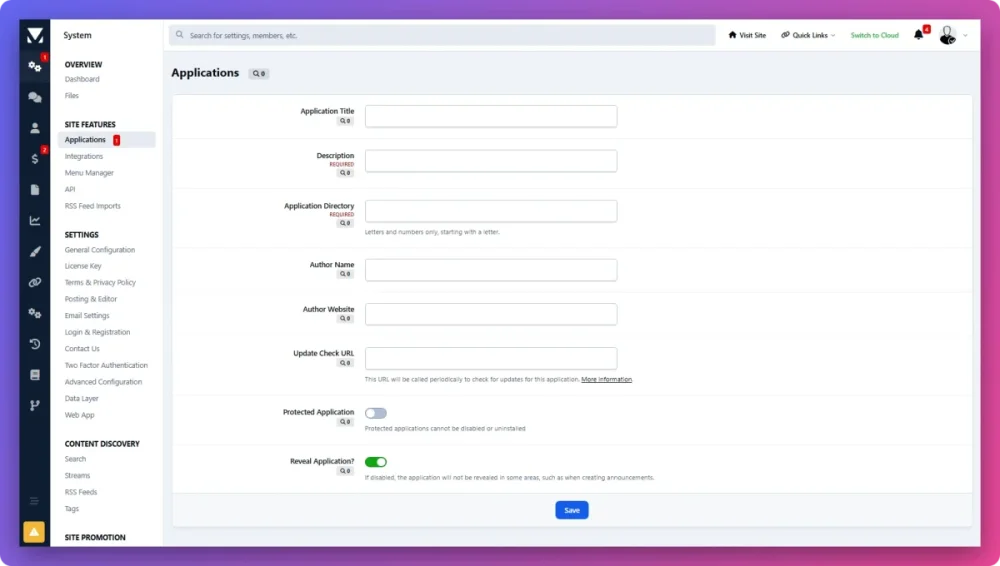
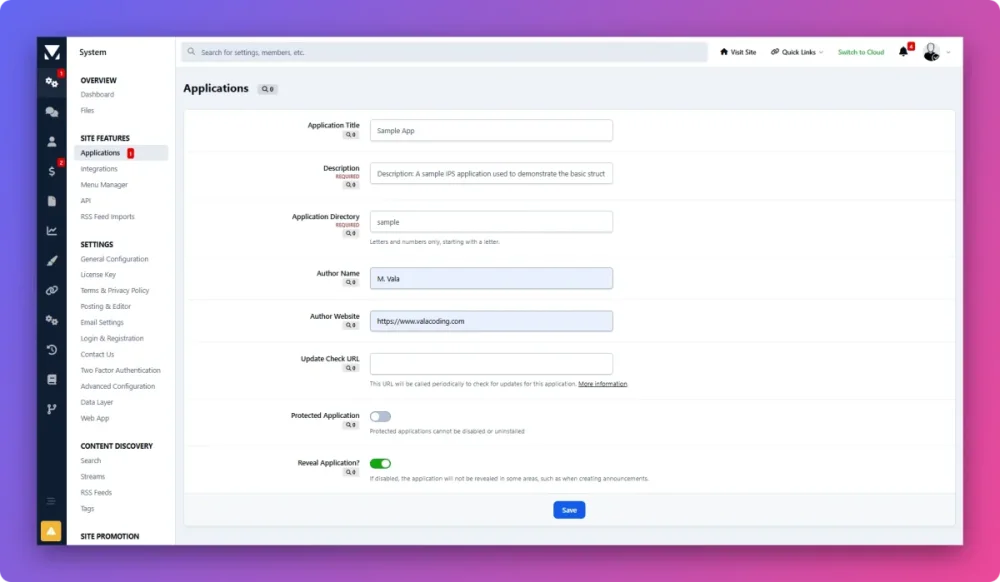
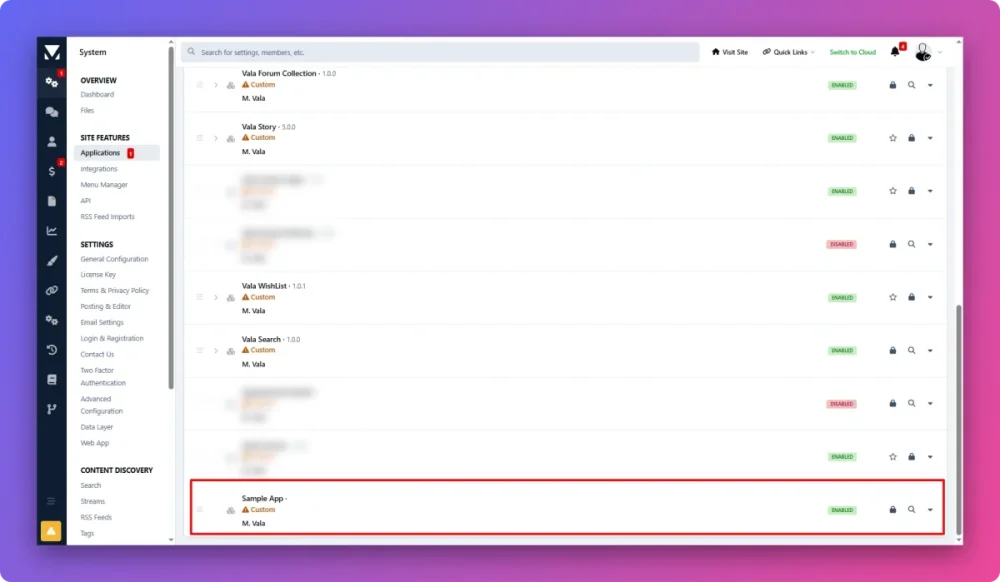
How to Build an IPS 5 Application — Getting StartedIf you're new to Invision Community development, one of the first things you'll probably want to learn is how to build your own application. In this guide, we'll create the initial structure of an IPS 5 application and prepare it for development. We won't cover controllers, models, templates, database structure, or other development concepts yet. Those topics will be covered separately in the following guides. What Is an IPS Application?An IPS application is a self-contained extension for Invision Community that adds new functionality to the platform. An application can add things such as: New frontend pages Admin Control Panel pages Database tables and models New content types Custom settings Permissions JavaScript functionality Integrations with external services Custom functionality that isn't available in the core platform For example, an application could provide a live search system, a review system, a custom directory, an API integration, or an entirely new feature for your community. Do You Need to Build an Application?Not necessarily. Small visual changes, such as CSS styling adjustments, can usually be done directly through the Theme Management section. However, any functional change — from adding a hook, template modification, JavaScript customization, or a small extension to building a large standalone feature — should be implemented as an application. An application is the correct approach when you want to add custom functionality with its own logic, settings, database tables, permissions, language strings, or administration interface. A simple rule of thumb: Enable Developer ToolsBefore creating an application, make sure IPS developer tools are enabled. Open your IPS installation and create a file named constants.php if it does not already exist. This file is not included by default in a fresh IPS installation. constants.php Add the developer tools constant: <?php define( 'IN_DEV', TRUE ); Save the file and reload your Admin Control Panel. With developer tools enabled, additional development options become available in the ACP. Create a New ApplicationNow open the Admin Control Panel. Go to: Applications Then click: Create New IPS will ask for some basic information about your application. Application TitleEnter the title that users will see. For example: Live Search This is the human-readable name of your application and can contain spaces and normal capitalization. DescriptionThe application description is used to explain the purpose of your application. Write a clear and concise summary of what your application does and what functionality it provides. Application DirectoryNext, choose the folder/application key used by the application. For example: livesearch Keep this value simple. A good application folder name should generally: Use lowercase characters Avoid spaces Avoid unnecessary special characters Be short and descriptive Be unique within your installation For example: livesearch forumcollection story valalms Avoid names such as: Live Search Live_Search My Awesome Application The folder name is an internal identifier, so keeping it clean from the beginning will save you trouble later. Author InformationEnter your developer information, including: Author Name Author Website Any other information requested by the application creation form Use the information you want to associate with the application. For a public application, your author information becomes part of the application's identity and is useful when distributing the application to other communities. Create the ApplicationAfter filling in the required information, submit the form. IPS will create the initial application for you. At this point, you have successfully created the basic IPS 5 application. You haven't built any functionality yet — you've only created the application's foundation. What's Next?Now that the application exists, the next step is understanding what IPS created for us. We'll look at the application's directories and files and explain what each part is responsible for.
-
Need help with IPS Wishlist? Ask your questions and get support from our community.
-
Found an issue with IPS Wishlist? Report bugs and help us improve the product.
-
Share your ideas and suggestions to help shape the future of IPS Wishlist.
-
Share your ideas and suggestions to help shape the future of IPS Live Search.
-
Found an issue with IPS Live Search? Report bugs and help us improve the product.
-
Need help with IPS Live Search? Ask your questions and get support from our community.
-
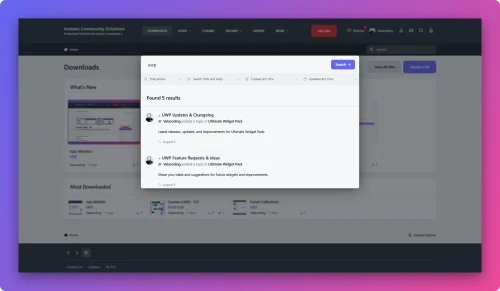 Live Search enhances the default Invision Community search experience with fast, AJAX-powered results without requiring users to leave the search interface. It works seamlessly on desktop and mobile, supports the native IPS search filters, and automatically updates results as users type. Features: ⚡ Instant AJAX search results 🔎 Search as you type 📱 Fully responsive — Desktop & Mobile 🎯 Works with native IPS search filters 🚀 Lightweight and easy to install 🎨 Designed to integrate naturally with IPS Free to use, built by ValaCoding.Free
 -
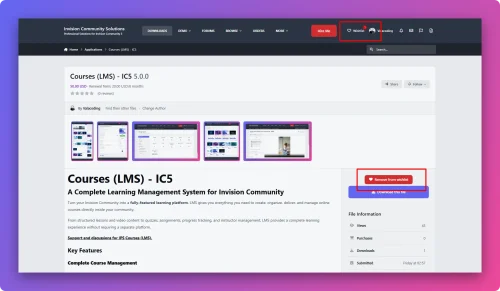 Wishlist A lightweight wishlist solution for IPS communities. Users can save their favorite files with a fast AJAX add/remove experience and manage all saved items in a dedicated wishlist page. Current version supports IPS Downloads only.Free
 -
Need help with Forum Collection? Ask your questions and get support from our community.
-
Need help with Story? Ask your questions and get support from our community.
-
Found an issue with Forum Collection? Report bugs and help us improve the product.
-
Found an issue with Story? Report bugs and help us improve the product.
Invision Community Solutions
Professional Solutions for Invision Community 5
Useful Links
 Courses (LMS)
A full LMS App in Invision Community
Next.js Resources
Discover useful Next.js templates and tools
Courses (LMS)
A full LMS App in Invision Community
Next.js Resources
Discover useful Next.js templates and tools
 Story App
Bring Social Media-Style Stories to Your Community
GitHub
Manage code and repositories
Figma
Design and collaborate visually
Notion
Organize docs and team knowledge
Story App
Bring Social Media-Style Stories to Your Community
GitHub
Manage code and repositories
Figma
Design and collaborate visually
Notion
Organize docs and team knowledge
Useful Links
Courses (LMS)
A full LMS App in Invision Community
Next.js Resources
Discover useful Next.js templates and tools
Story App
Bring Social Media-Style Stories to Your Community
GitHub
Manage code and repositories
Figma
Design and collaborate visually
Notion
Organize docs and team knowledge